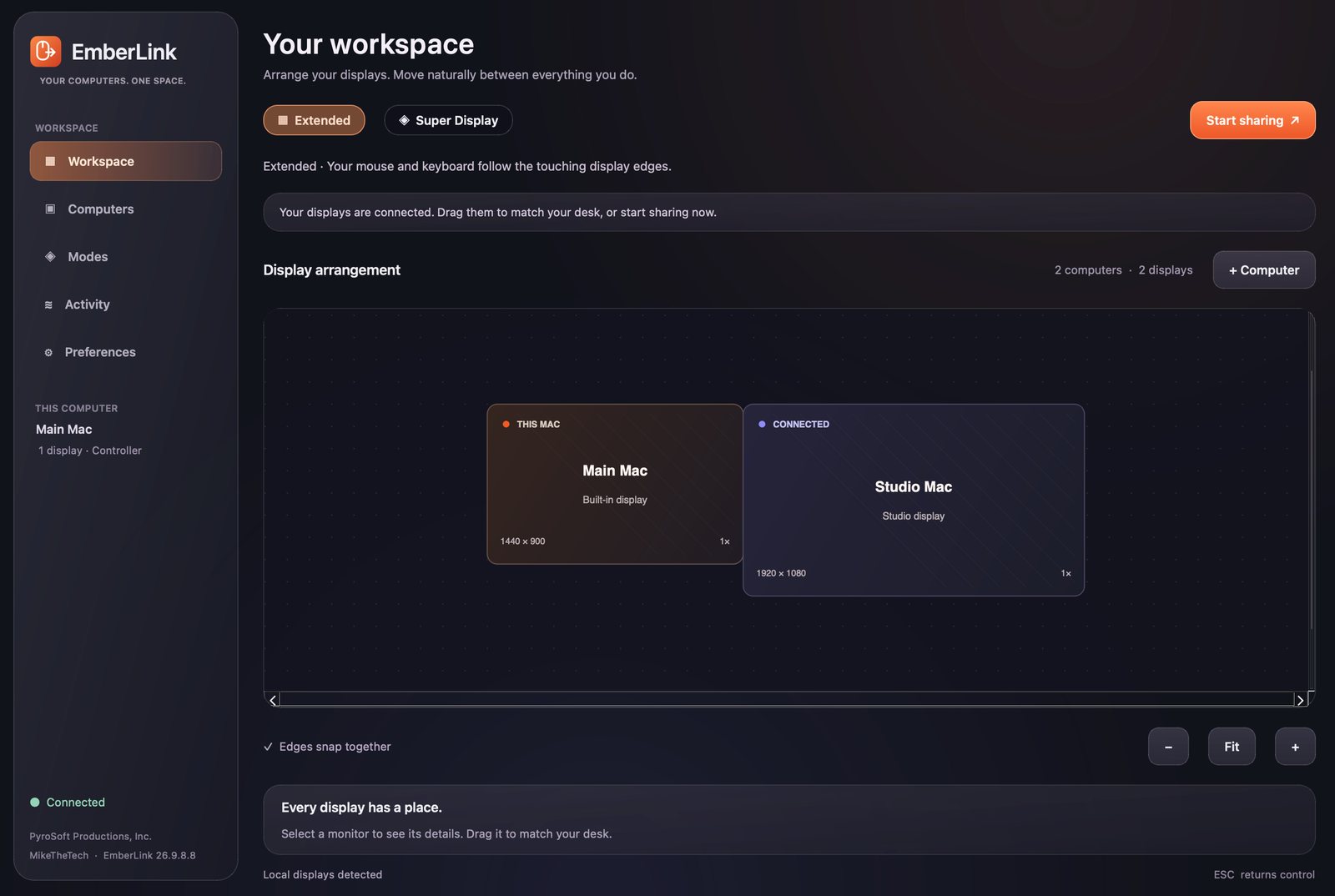
Each computer keeps its own monitor. Cross a touching edge and the pointer moves to that computer; keys, buttons, scrolling and clipboard follow.
Coming soon
Engineering preview
Keyboard, mouse & clipboard sharing
One desk. Every computer.
EmberLink shares one keyboard, mouse and clipboard across the computers on your desk. Arrange every monitor where it really sits, push the pointer across a touching edge and your typing follows — or switch to Super Display and bring another computer's desktop onto the screen in front of you.
80 automated tests passing
Encrypted with TLS
No account, no cloud relay
H.264 / HEVC streaming
No cloud relay.Your computers talk to each other directly on your own network, over an encrypted TLS connection.
No account.Nothing to sign up for. Two computers pair with each other, confirmed by a code you compare yourself.
Nothing starts by itself.Pairing never starts sharing. You choose Start sharing, and Esc hands your keyboard and mouse back.
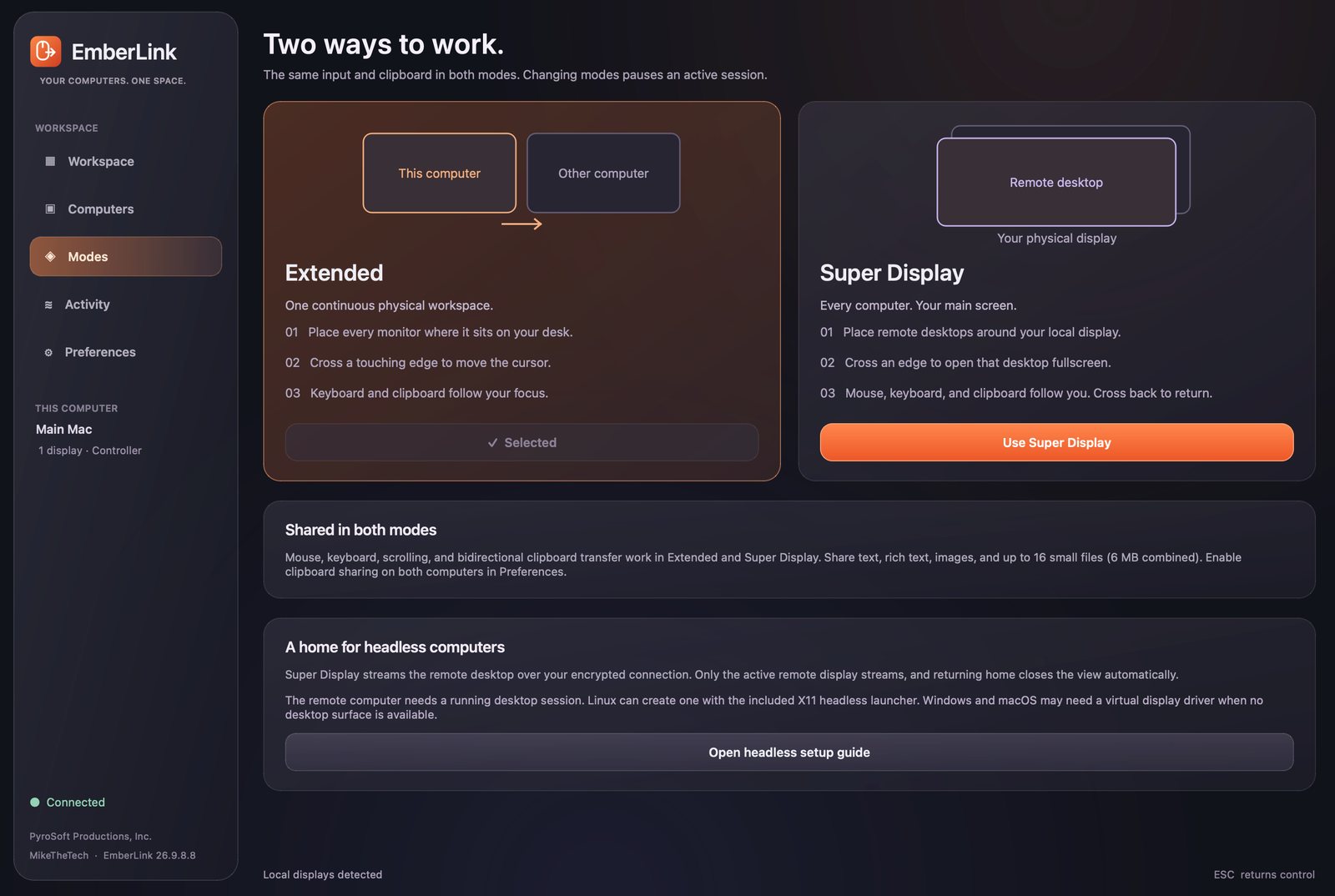
Two ways to work
Extended, or Super Display.
The same keyboard, mouse, scrolling and clipboard in both. The difference is where the other computer's picture lives.
Cross an edge and that computer's desktop opens fullscreen on the monitor you're already using. Cross back to return to your own.
Switch modes from the Modes page, the Workspace pills or the Workspace menu. Switching pauses an active session.
Pair. Accept. Start sharing.
Set up in four steps.
Nothing connects until the other computer agrees, and nothing is shared until you start it.
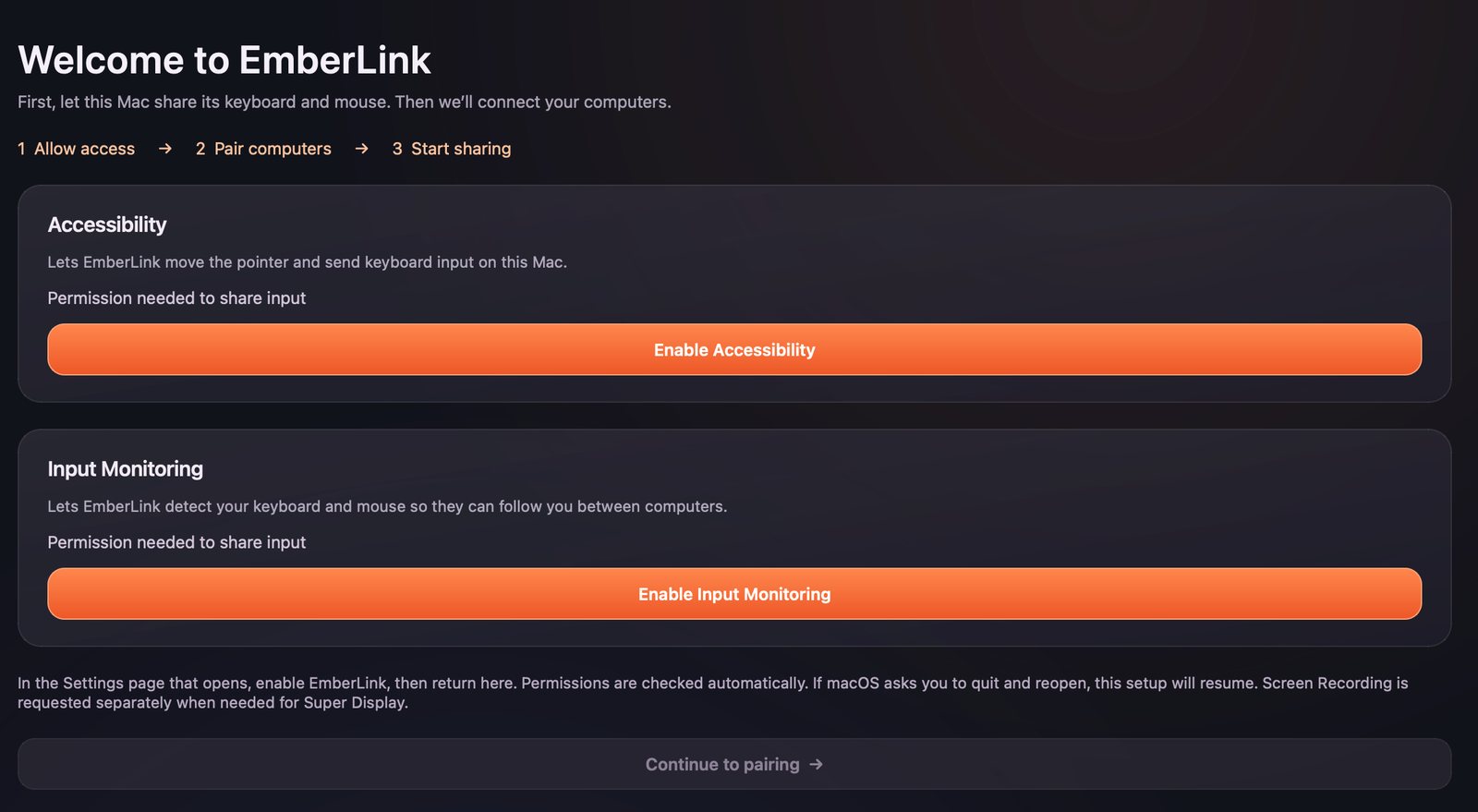
Allow access
On a new Mac, a setup page explains Accessibility and Input Monitoring, opens the right System Settings page for each and checks automatically.
Pair
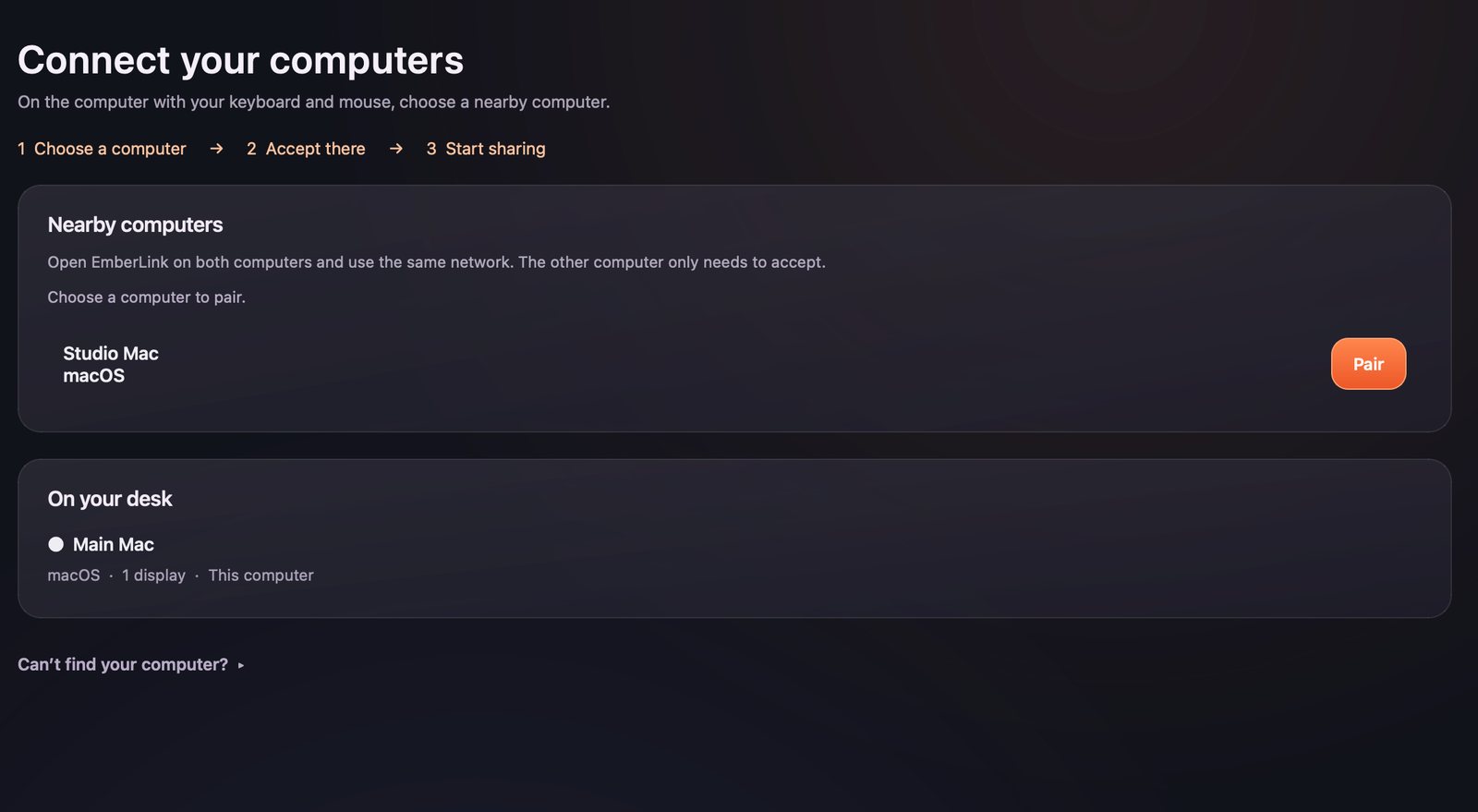
Open EmberLink on both computers on the same network. On the one with your keyboard and mouse, pick the other computer and choose Pair.
Compare & accept
Both screens show the same six-digit code. Check that it matches, then accept on the other computer.
Arrange & share
Its displays join your workspace. Drag them into place, choose Start sharing, and press Esc when you want your computer back.
What's inside
Built for a desk full of computers.
A native desktop app with native menus, keyboard shortcuts and, on macOS, Apple's Liquid Glass material where the system supports it.
Shared edges connect; gaps and corner-only contact don't. Plugging in or removing a display pauses sharing so you can check the layout.
Text, rich text, PNG images and up to 16 ordinary files (6 MB combined). Folders and symlinks stay put. Turn it off in Preferences.
Bonjour discovery on your local network, approval on the receiving computer, and a manual invitation when discovery is blocked.
No password is broadcast. The one-time pairing credential expires after two minutes and works once. Old invitations can be revoked.
If the connection drops, held keys and buttons are released and your local keyboard and mouse come back. ⌘/Ctrl+Return toggles sharing.
Search it, or filter it down to errors only.
Super Display streaming
Another desktop, on the screen you're using.
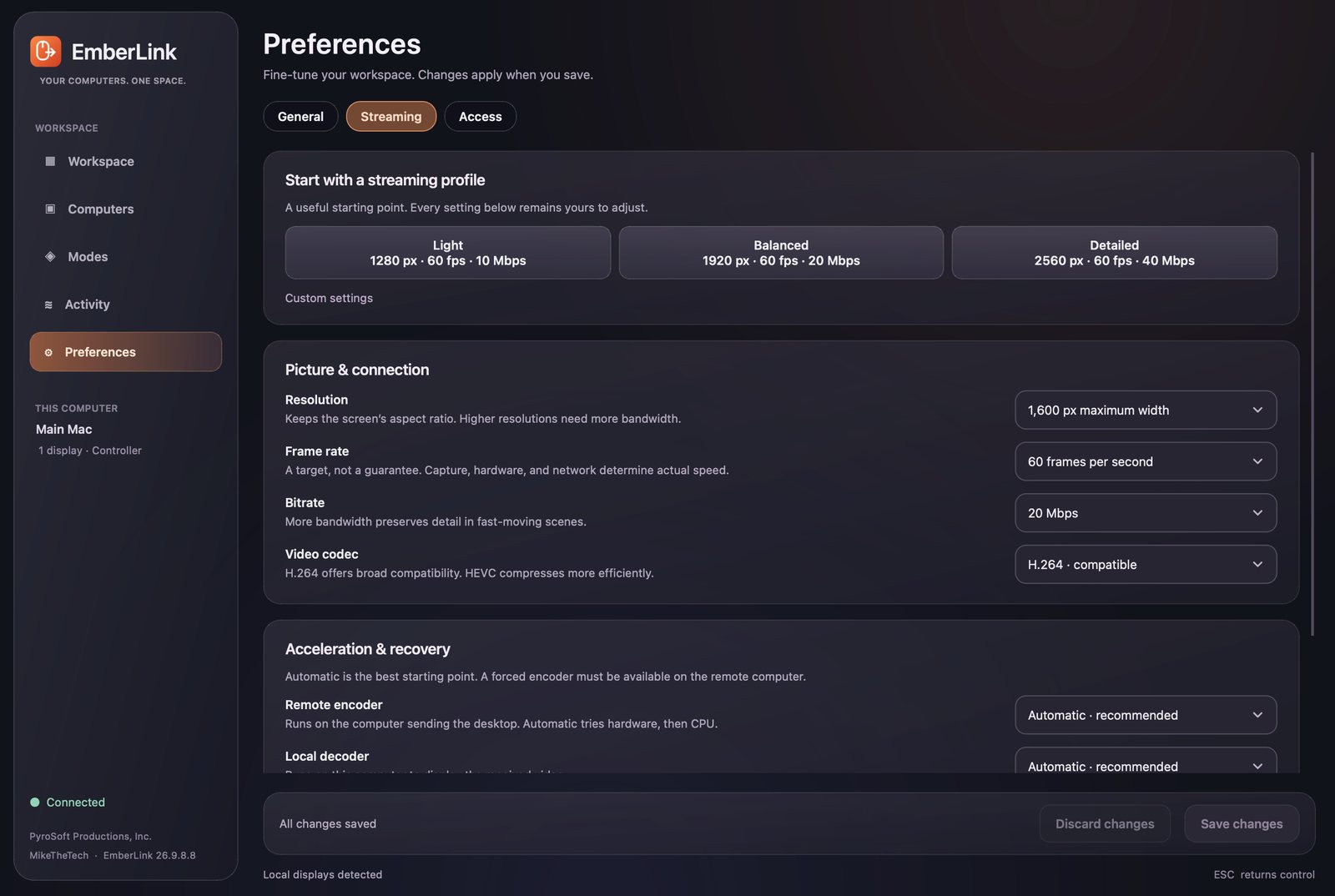
Super Display streams the remote desktop as continuous H.264 or HEVC over the same encrypted connection as your input. Only the active remote screen streams, and crossing back closes the view.
- Start from a Light, Balanced or Detailed profile, then set resolution up to 3,840 px wide, a frame-rate target from 15 to 120 fps, and bitrate from 1 to 150 Mbps.
- Hardware encoding is tried first, with a software fallback. On a Mac that's VideoToolbox, fed by ScreenCaptureKit capture. The NVENC, Quick Sync and AMF paths for Windows and Linux haven't been tested on real hardware yet.
- Keyboard and mouse messages go ahead of queued video, and a congested stream recovers with a fresh keyframe.
No audio or HDR. The frame rate is a ceiling, not a promise, and near-native latency between two computers hasn't been proven yet.
Status — honestly
Coming soon. Not finished.
EmberLink is an engineering preview. The current build, 26.9.8.8, is Developer ID signed and notarized by Apple, and 80 automated tests pass — including real encrypted loopback connections between two EmberLink instances on one computer, with simulated input. Those tests can't prove what happens between two physical computers, so the gaps are listed here.
Working today
- A signed, notarized build for Apple Silicon Macs that passes Gatekeeper, tested on macOS 26.
- On real Macs, with an earlier preview build: moving the pointer out to a second Mac in Extended mode, and smooth Super Display viewing of its desktop.
- Nearby discovery and the pairing-approval dialog, checked in the packaged app.
- Mac desktop capture with ScreenCaptureKit and VideoToolbox: 60 frames at 1920×1248 captured, encoded and decoded in 1.43 seconds including startup — a local test, not a two-computer latency figure.
- A first-run permissions setup for new Mac installs, checked with simulated missing permissions.
Not yet
- Crossing back to the local screen. On real hardware, returning caused directional cursor drift, or a black screen with lost cursor control. Fixes pass automated tests, but the two-Mac round trip hasn't been re-checked on real machines.
- Typing, clipboard pasting and streaming latency between two physical computers still need testing.
- No Windows or Linux build yet, and neither platform has been run on a real Windows or Linux machine.
- No audio or HDR in Super Display.
- No public download and no announced price.
| Mac | Apple Silicon — the only preview build so far, tested on macOS 26. The oldest macOS version it supports hasn't been confirmed yet. Needs Accessibility and Input Monitoring, plus Screen Recording to send its desktop in Super Display. |
|---|---|
| Windows | Native input hooks are written but untested on real devices, and there's no Windows build yet. UAC prompts, the lock screen and Ctrl+Alt+Delete can't be controlled. |
| Linux | X11 sessions only; Wayland isn't supported. Key mapping targets standard US layouts. No Linux build yet, and not yet tested on real devices. |
| Network | Computers on the same local network that can reach each other. Bonjour discovery, TCP 24880 for the workspace and 24881 for pairing approval. Guest Wi‑Fi isolation can block pairing. |
| No monitor | Super Display needs a desktop to capture. On Linux, an included launcher creates one with Xvfb (not yet run on a Linux machine). Windows and macOS need a signed-in desktop and may need a virtual display driver, which EmberLink doesn't install. |
Questions people actually ask
FAQ
When can I get EmberLink?
It's coming soon. There's no public download yet and no price has been announced. Join the PyroSoft Discord for launch news.
Is it like Synergy?
Same idea: one keyboard and mouse moving between computers as if their screens were one desk. EmberLink is a new implementation — no Synergy or Deskflow code or brand assets were used — and it also has Super Display, for bringing a remote desktop onto the screen you're using.
Which computers will it work with?
The app is written to span Mac, Windows and Linux, including mixed desks. Today only the Apple Silicon Mac build exists. Windows and Linux support is written but hasn't been run on real Windows or Linux machines yet, and Linux needs an X11 session.
Does anything go through the internet?
No. Paired computers talk directly over TLS on your local network, with no account and no cloud relay. Treat a manual invitation like a password — Preferences can revoke old ones.
What if something goes wrong mid-session?
Press Esc to stop sharing. If the connection drops, EmberLink releases any held keys and mouse buttons and gives you back local control, and a stalled video stream closes Super Display.
What happened to MousePort?
MousePort was the working name for EmberLink's first private preview builds; it was renamed EmberLink. Pairings, layouts and settings from those builds carry over, and older mouseport:// invitations are still accepted.
Is EmberLink open source?
No. EmberLink belongs to PyroSoft Productions, Inc., and the preview grants no open-source licence. The libraries it's built on — including Qt/PySide6, pynput and FFmpeg through PyAV — keep their own licences.
Coming soon
EmberLink isn't out yet.
There's no public download yet. Join the PyroSoft Discord for launch news, or look around at what PyroSoft already ships.